
How to Use the Vault
Updated 2026-07-10 · 6 min read
What How to Use the Vault covers
This guide walks through how to use the vault inside WBP Omni SEO Pro. You'll set up the feature, apply it across your existing WordPress content, and verify the change is live in Google Search Console. Written for site owners, editors and agencies managing 50+ URLs.
Before you start
Confirm you're on WBP Omni SEO Pro 2.x or newer, that WordPress is 6.4+, and that PHP is 8.1+. Take a database backup before any bulk change. If you're switching from another SEO plugin, run the built-in import first so meta, redirects and schema carry over cleanly.
Step-by-step setup
Open WBP Omni SEO Pro → Dashboard → the relevant module for this article. Enable the feature, save, and open a test post to verify the new fields render. For bulk work, jump to the Bulk Grid and filter by post type, category or status — every SEO field is editable inline without opening each post.
How this affects rankings
The right configuration for how to use the vault improves crawl efficiency, click-through rate or on-page relevance depending on the feature. Google's documentation and independent studies from Moz, Ahrefs and Search Engine Journal confirm that consistent, machine-readable signals across an entire site outperform one-off optimizations on a handful of posts.
Common pitfalls
Editors often apply the change to one post and forget the rest of the site. Others enable the feature but leave the legacy plugin's data in the database. Always run a re-index after a large bulk edit, and audit the change on 5 random URLs before signing off.
Inside WBP Omni SEO Pro
Real product screenshots — click any image for the full resolution.
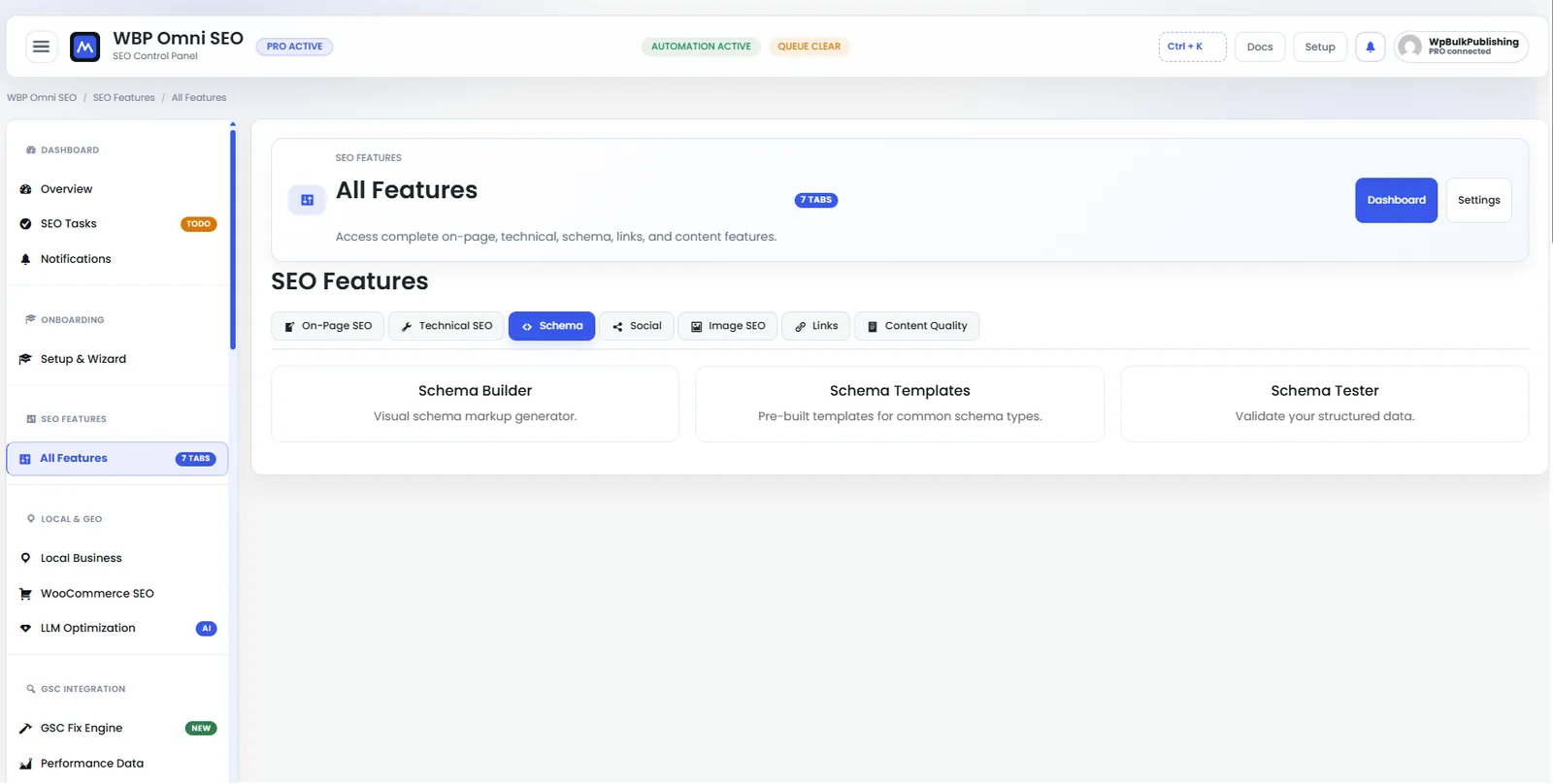
Feature Set — Schema
Full schema library: Article, Product, LocalBusiness, FAQ, HowTo, Course, Recipe and more.
- features
- schema
- structured-data
- rich-results
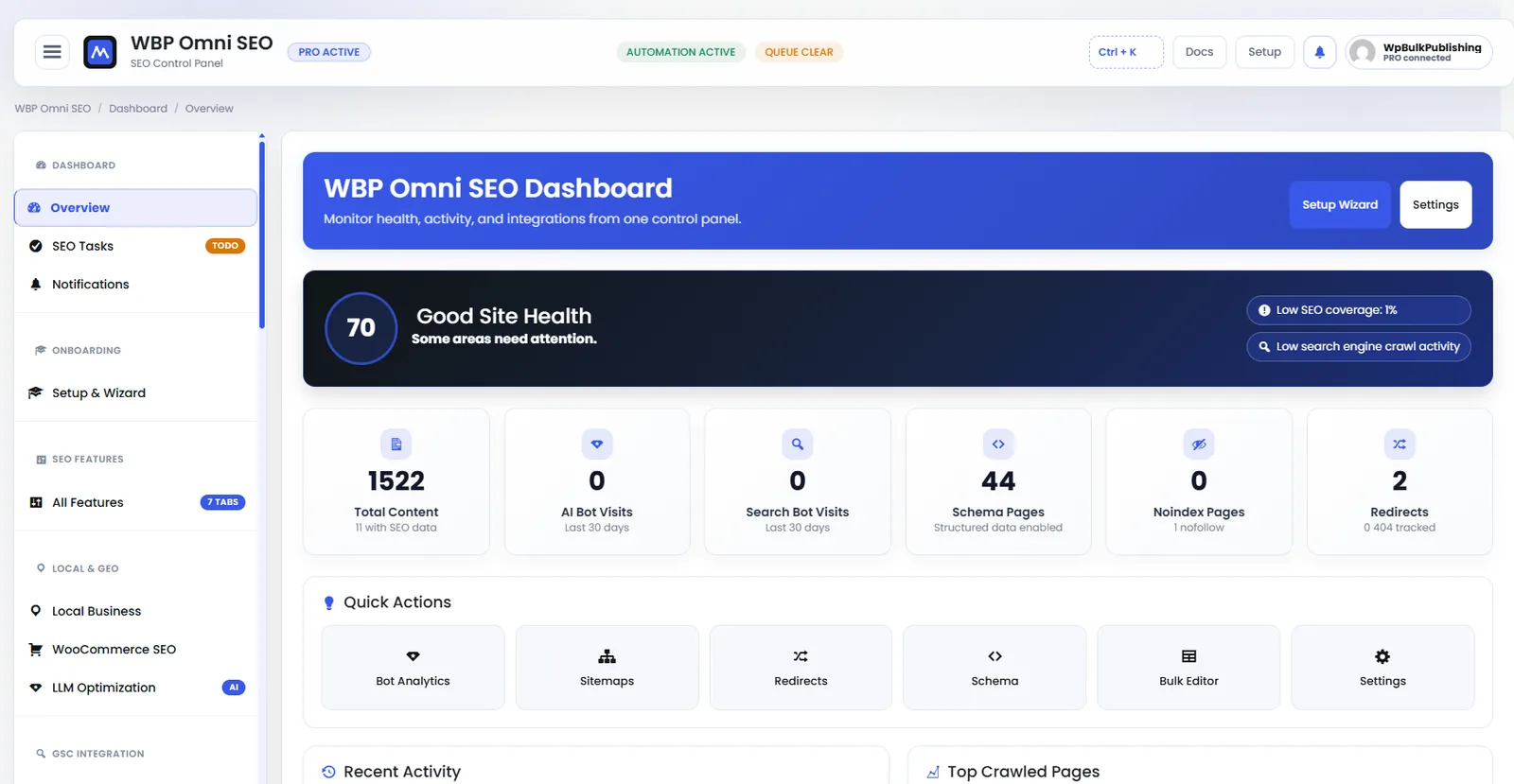
WBP Omni SEO Dashboard
Main WBP Omni SEO dashboard showing site health, SEO score, top pages, and quick actions.
- dashboard
- overview
- analytics
- ui
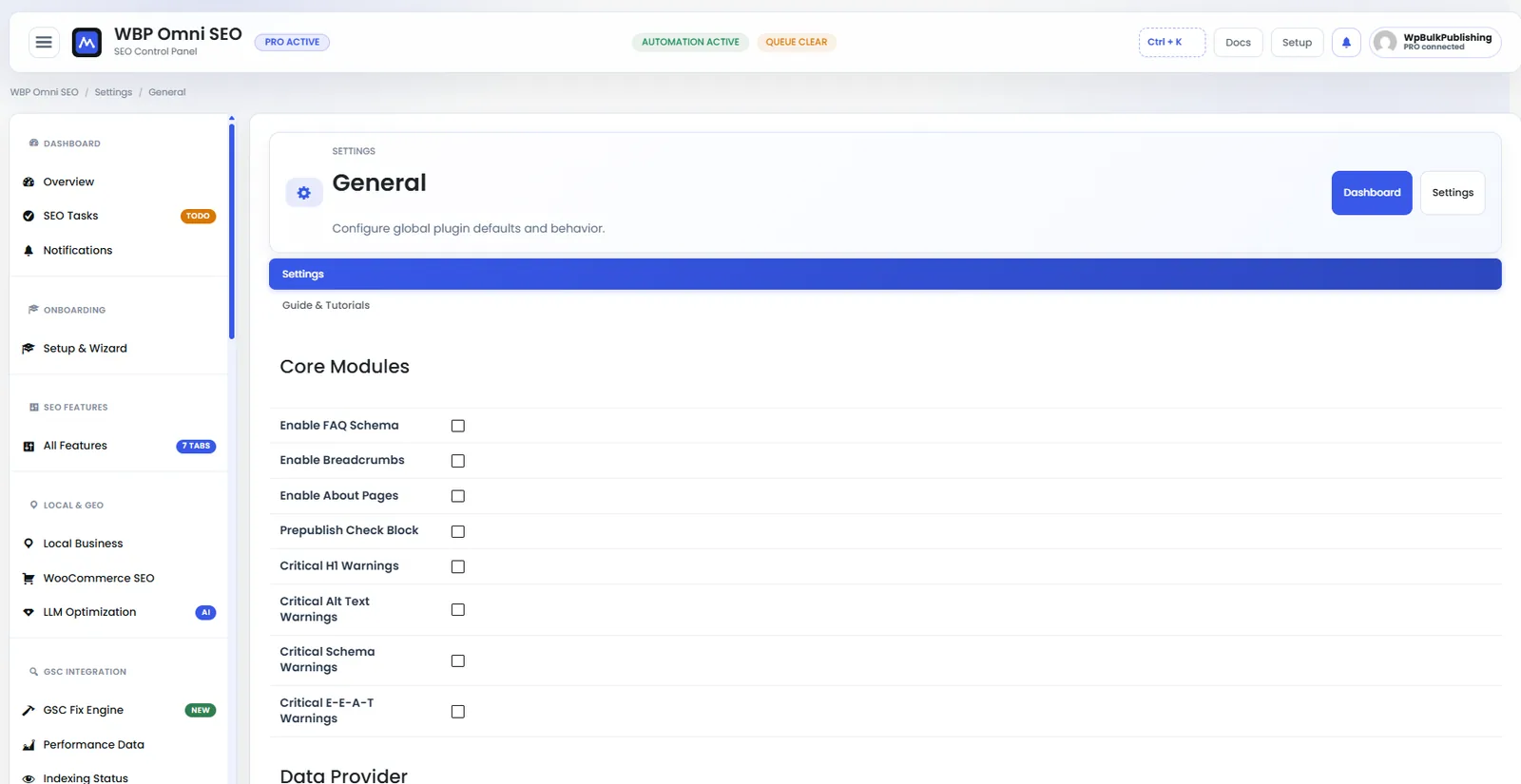
General Settings
General settings screen: separators, permalinks, breadcrumbs, and image alt rules.
- settings
- configuration
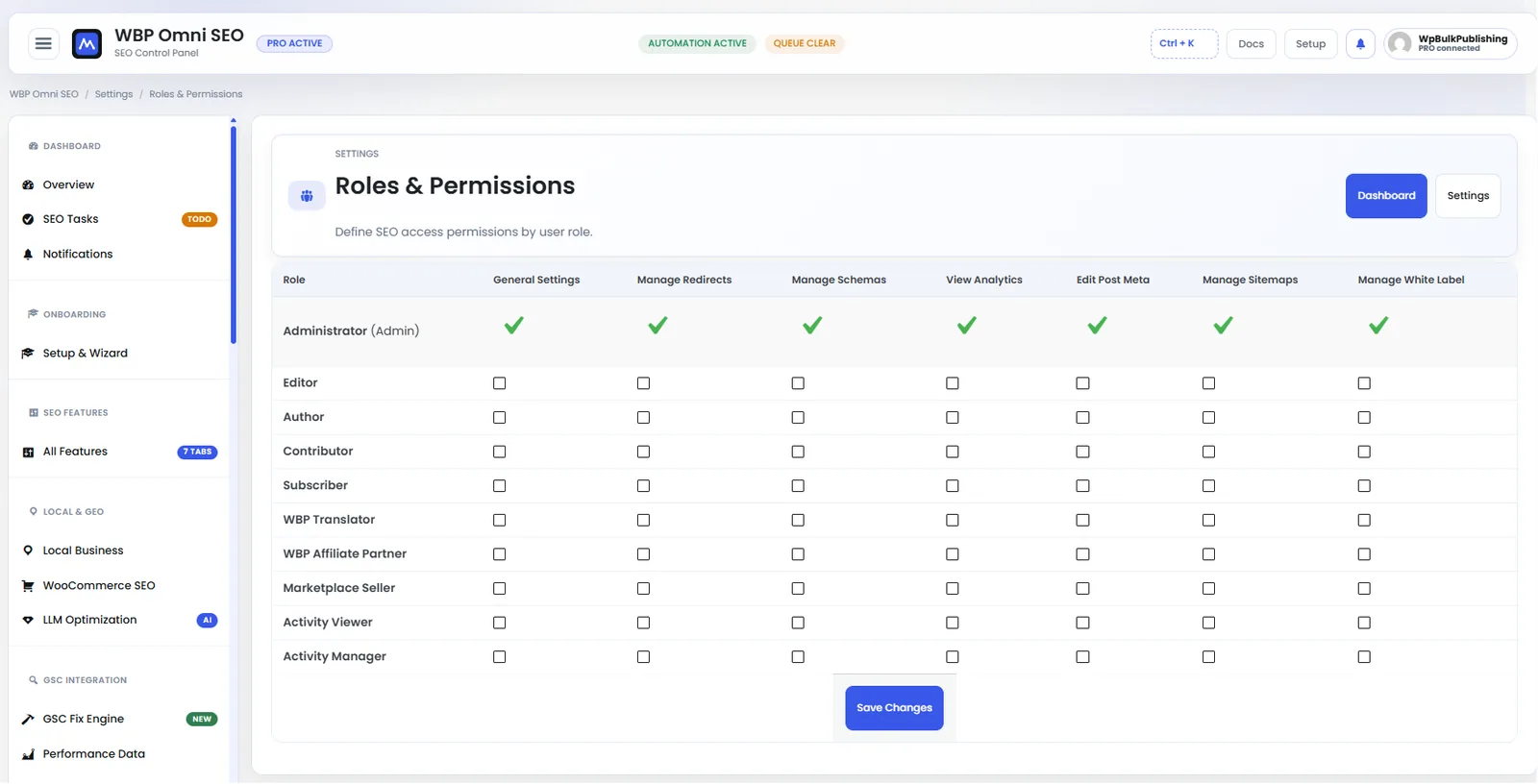
Roles & Permissions
Per-role permission matrix so admins can lock down SEO features by WordPress role.
- roles
- permissions
- settings
- multi-user
Rollout checklist
- Backup the database before any bulk change.
- Enable the feature in WBP Omni SEO Pro → Dashboard.
- Verify on one test URL before rolling out.
- Use the Bulk Grid to apply the change to every affected URL.
- Request re-indexing on your top 25 revenue URLs.
- Track the metric that matters for 14 days.
FAQ
Do I need WBP Omni SEO Pro to use how to use the vault?
The free WBP baseline covers the basics. The Pro plan unlocks the bulk grid, schema library, AI writers and the automated workflows referenced in this article.
Will this break my existing SEO plugin data?
No. WBP imports and preserves data from major competitors. Deactivate the other plugin only after you've verified the imported meta on 10 random URLs.
How long until I see the change in Google?
Google typically re-crawls active sites every 2–14 days. Force it with URL Inspection → Request Indexing on your most important pages.
Can I do this in bulk?
Yes. Every field described here is editable from the WBP Bulk Grid — filter, select, edit inline, save.
Ship this in one afternoon with WBP Omni SEO Pro
Bulk-edit every SEO field across every URL. One WordPress plugin. No spreadsheets.
Get WBP Omni SEO ProMore in Core Settings
563 articles across 21 categories. Browse all →